Ask your AI assistant what's moving.
TabChart opens the charts.
TabChart ships an MCP server. Claude, Cursor, VS Code and other assistants can read the markets TabChart already streams, then act on your screen - open charts, set price alerts, arrange a workspace. Free, local, and it can never place a trade.
Open 15-minute charts for whatever is moving most on Binance right now.
Done - six 15m charts are open in TabChart in a new workspace, ranked by 24h range. Want an alert on the top one?
The model brings the judgment. TabChart brings the screen.
MCP - the Model Context Protocol - is an open standard for letting an AI assistant use a tool. An MCP server publishes a list of things it can do, and the assistant calls them when your request needs one. Because it is a standard, the same server works in Claude, Cursor, VS Code and the rest, and keeps working when you switch.
Neither half works alone. A chatbot can rank the most volatile coins, but it cannot put six charts in front of you. TabChart can draw the charts, but its idea of "most volatile" is one fixed formula. Together you get requests that neither could answer on its own:
- "Which USDT pairs are near their 24-hour high on thin volume? Open the top four at 1h."
- "Run my Active Movers screener on Bybit and chart anything that is also on my watchlist."
- "Alert me when SOL crosses 250, and every $1,000 BTC moves after that."
- "Which alerts fired overnight? Re-arm the ETH one."
- "Make a 3×2 workspace called Morning with my watchlist in it."
The data behind the answer is the live WebSocket stream TabChart already holds from your exchanges, ranked inside the app before anything reaches the model - so a question about the whole market costs a few dozen rows, not the full ticker table.
What the assistant can do
Eighteen actions, each one a thin layer over the same code the TabChart window uses - so what the assistant is told and what you see on screen cannot disagree.
Read the market
Your connected exchanges and the timeframes each supports, market lookup, and live tickers - price, 24h change, volume, high and low - sorted and filtered inside the app. Plus your own screener lenses, run with your thresholds, and the built-in presets.
Open charts on your screen
Any list of markets, or one of the presets, at the timeframe you ask for. TabChart comes to the front and the charts load live - the half a headless server cannot do.
Arrange workspaces
See every workspace and what is in it, create a new one, change its grid of rows and columns, and close charts. Clearing a whole workspace needs an explicit confirmation, and the assistant is told to ask you first.
Price alerts and the watchlist
List active and fired alerts, create crossing, moving or time-interval alerts, remove them, re-arm a fired one. Read and edit the Quick Charts watchlist, several symbols at a time.
It can look at the market. It can never trade.
TabChart has no trading function and takes no exchange API keys - market data is public - so there is simply no path from a conversation to an order. The most an assistant can change is what is on your screen, and even that is behind its own switch.
Off until you turn it on
A fresh install does not listen for assistants at all. While the switch is off, every request is refused with a message that names the setting, so the assistant can tell you why instead of timing out.
Read-only by default
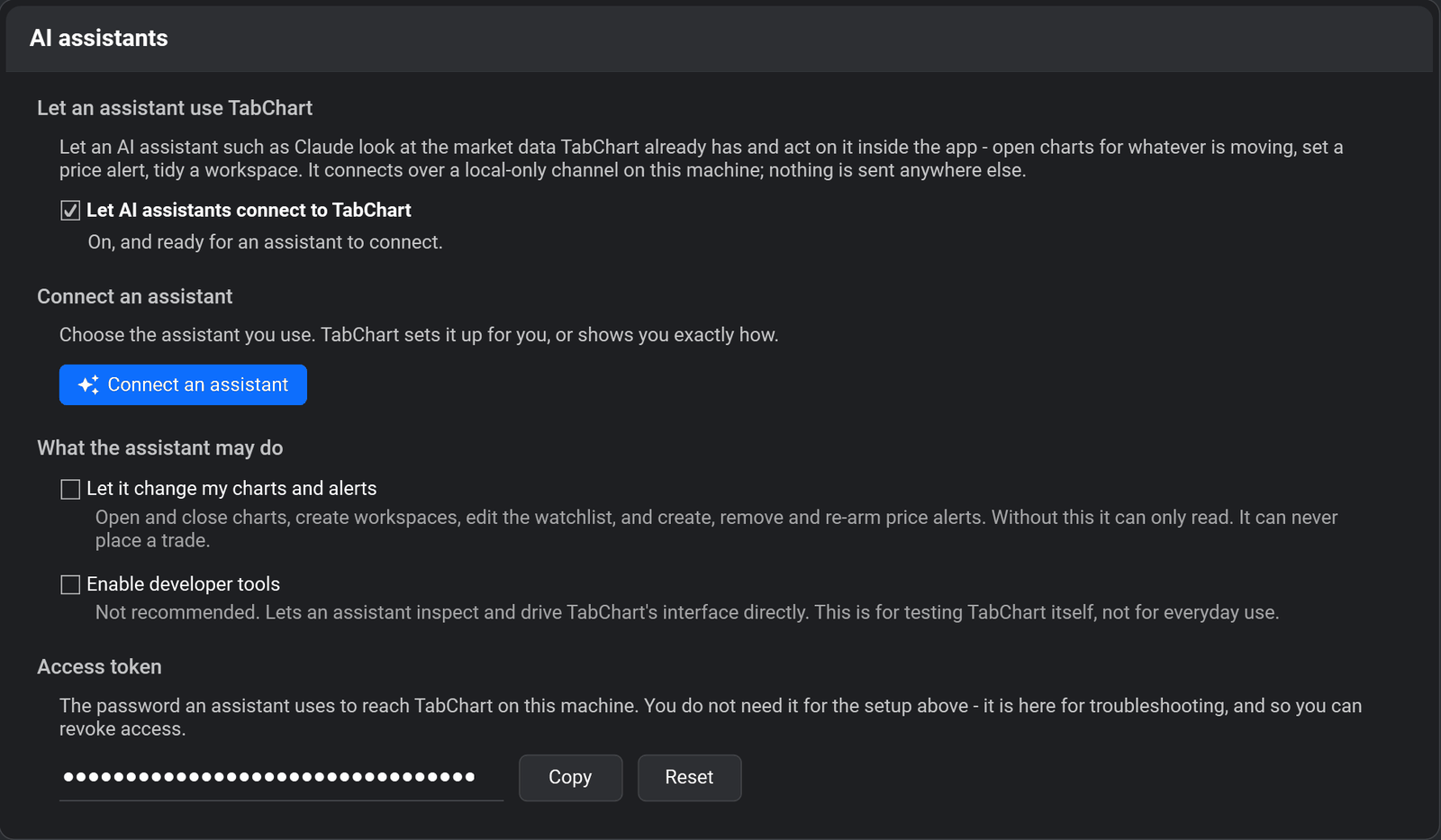
Let it change my charts and alerts is a second switch, also off. Without it the assistant can read markets, screeners, alerts and workspaces, but cannot open a chart or create an alert - an alert you did not ask for either wakes you at 3am or silently never fires.
Local only
The connection never leaves your PC: it listens on the loopback address only, and every request carries a token generated on your machine. Reset the token in Settings to cut off anything you connected earlier.
Your alert channels stay private
Telegram tokens, email passwords and webhook addresses are never exposed, and nothing it can do sends data outward on your behalf. Every switch applies instantly - no restart, no reconnect.
Which assistants can connect
Any MCP client that runs on your PC. Connect an assistant is one dialog: pick yours, and TabChart takes the shortest route it can vouch for. Assistants it finds installed are listed first.
- Claude Desktop, Cursor, VS Code, Windsurf, Gemini CLI - TabChart adds itself to the assistant's settings file. Everything already in that file is kept, a copy is saved first, and removing TabChart again is a button in the same dialog.
- Claude Code - a one-line command to run, because Claude Code rewrites its own settings while it runs.
- Codex CLI, Antigravity and anything else - the exact steps and the block to paste.
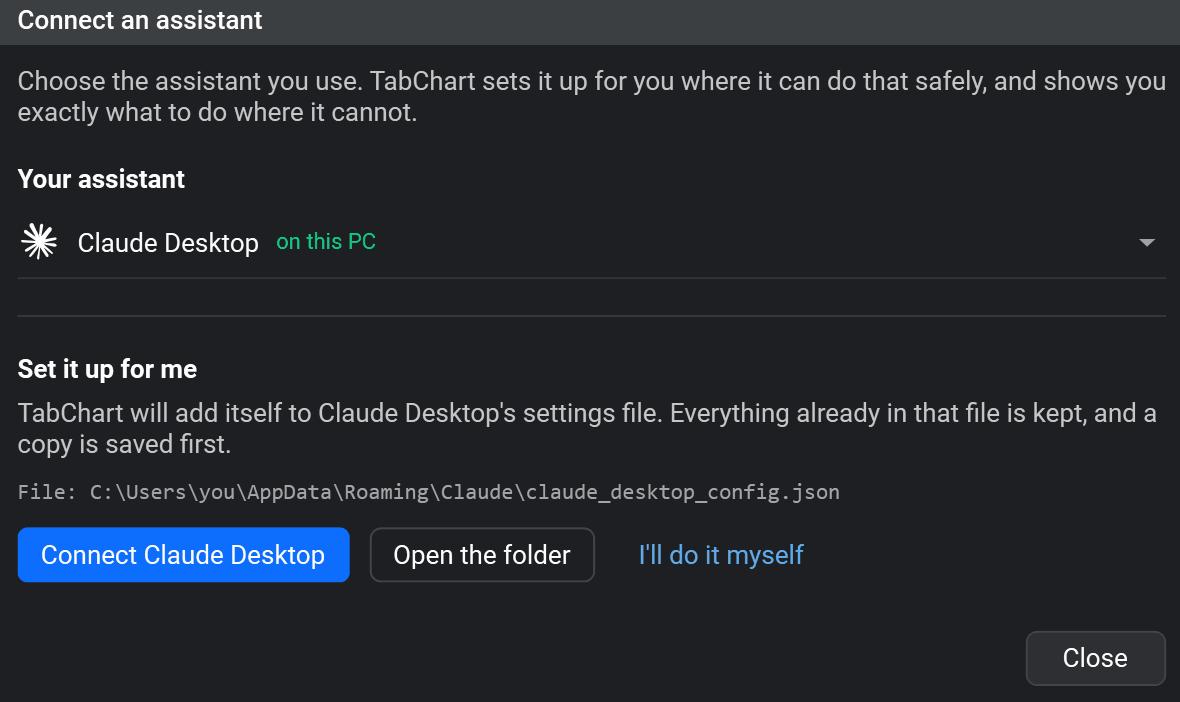
ChatGPT and Claude in the browser cannot connect: they reach MCP servers from their own servers over the internet, and TabChart's runs on your machine.
Setting it up
- Install TabChart 2026.9.2 or later - it updates itself if you already have it.
- Open Settings > AI assistants and tick Let AI assistants connect to TabChart. Tick Let it change my charts and alerts as well if you want it to open charts, not just read.
- Press Connect an assistant, pick yours and press Connect. Restart the assistant, then ask it: which exchanges do I have in TabChart?
Two things worth knowing
TabChart does not have to be open. The assistant's first request starts it, as a normal window, and takes a few seconds longer. A session that never asks for anything never opens it.
Nothing in the setup goes stale. Turning the switch on places a small tabchart-mcp.exe in TabChart's install folder, and that is what the assistant launches. It always finds the currently installed version, and the setup holds no port and no password - so an update or a restart never breaks it.
What it deliberately does not do
- Trade. There is no order path in TabChart, and there will never be one reachable from an assistant.
- Hand over raw candles. A model cannot see a chart, and a candle history is a huge payload for little gain. It gets tickers, rankings and your screeners - and the charts go on your screen, where you can read them.
- Touch your notification channels. Credentials and delivery addresses stay in Settings, permanently.
- Delete workspaces or clear your data. Anything with no undo stays a click in the app.
Common questions
What is an MCP server?
MCP (Model Context Protocol) is an open standard that lets an AI assistant use outside tools. An MCP server publishes a list of actions - here, reading the markets TabChart streams and working its charts, alerts and workspaces - that the assistant can call on your behalf. Most AI clients and coding agents support it, so one server works across whichever ones you use.
How is this different from the TradingView MCP server?
TradingView's server brings TradingView's own data into the chat. TabChart's works the other way round: the assistant acts on a desktop app on your PC, so the answer to a question is live charts, alerts and workspaces in front of you. It needs no TradingView account, runs locally, and is free. More on the two apps side by side in TabChart vs TradingView.
Can the assistant place trades?
No. TabChart has no trading function and takes no exchange API keys, so there is nothing for an assistant to reach. The most it can change is what is on your screen: charts, workspaces, the watchlist and price alerts - and only after you turn on a separate switch.
Does TabChart have to be running?
No. If TabChart is closed, the assistant's first request starts it - as a normal window, never a hidden background service - and takes a few seconds longer.
Is anything sent to TabChart's servers?
No. The assistant talks to TabChart over a local-only channel on your PC, protected by a token generated on your machine. What the assistant reads goes to the AI provider you chose to use, under their terms - TabChart's part of the chain stays on your computer.
Does it cost anything?
No. The MCP server is part of TabChart, which is free: no plan, no account and no per-request limit.
Related
Charts that answer the question you just asked
Free, native, no account. Windows 10 and 11.
Download TabChart free